


Your WiFi might be the problem.
The sections below each look at a different aspect of WiFi performance, from signal strength through to the hardware itself. Each one explains what to look for and ends with the actions worth taking. You don't need to work through everything, most WiFi problems are solved (or at least confirmed) by the first couple of sections.
Wireless signals are affected by interference from walls, other electronic devices, and even people. The simplest diagnostic is also the cheapest: move closer to the wireless router or access point (AP) and see if the problem goes away. If it does, you're dealing with signal strength or placement rather than anything more exotic.
You can put numbers on this without installing anything, because both Windows and Mac have a signal check built in:
Open Command Prompt and run
netsh wlan show interfaces
Note the Signal (%) and Transmit rate (Mbps) lines in the results.
Hold Option and click the WiFi icon in the menu bar. Note the RSSI (dBm) and Tx Rate (Mbps) figures.
Take a reading close to the AP, and another wherever you're having problems.
These Signal/RSSI numbers tells you how strongly the router's signal is reaching your device. On Windows it's shown as a percentage, where higher is better. On Mac it's shown as RSSI, which is always a negative number where closer to zero is stronger (-50 dBm is better than -70 dBm).
Use whichever column matches your machine. The figures are a guide, and vary a little between manufacturers.
| Signal % (Windows) | RSSI (Mac) | Quality |
|---|---|---|
| 100% | -50 dBm or stronger | Excellent (very close to AP) |
| 80–99% | -50 to -60 dBm | Good |
| 65–80% | -60 to -67 dBm | Fair - usable, but may struggle with video/large transfers |
| 40–65% | -67 to -80 dBm | Poor - expect slowdowns and dropouts |
| Below 40% | -80 dBm or weaker | Very poor / unusable |
The rate figure is the connection speed your device and router have currently agreed on. This a useful bottom line, because distance, interference, and hardware limitations all show up in it. A handy comparison is: if the rate is comfortably above your broadband speed, WiFi probably isn't your bottleneck.
What to do:
A device can show a strong signal but still perform badly if background noise from other nearby devices is drowning it out. What matters isn't the noise level on its own, but the noise relative to your signal strength — known as the Signal to Noise Ratio (SNR).
Windows doesn't expose noise readings, but on a Mac you can see the noise level by Option-clicking the WiFi icon in the menu bar. To calculate SNR, subtract the noise from the signal: RSSI − Noise. Note that both are negative numbers, but should produce a positive number.
| SNR | Quality |
|---|---|
| Above 40 dB | Excellent |
| 25-40 dB | Good |
| 15-25 dB | Fair - slowdowns likely |
| Below 15 dB | Poor - latency, drops |
Noise problems are far more common on the 2.4 GHz band, and the usual suspects are microwaves, cordless phones, baby monitors, and old Bluetooth gear.
What to do:
Each frequency band is divided into individual channels. If your neighbours are all using the same channel as you, you may experience intermittent slowdowns or high latency, even when signal strength looks fine.
Many modern routers and APs manage channel selection automatically. If yours doesn't, it's worth checking how crowded your airspace is with a scanning tool:
What to do:
WiFi operates over three main frequency bands: 2.4 GHz, 5 GHz, and, on newer devices, 6 GHz.
Many APs combine 2.4 GHz and 5 GHz onto a single SSID (WiFi name) and automatically select the best band for each device — a feature known as band steering. This doesn't always get it right: your devices may support the faster 5 GHz frequency but actually get more reliable performance on 2.4 GHz.
What to do:
If signal, noise, channels, and frequency all check out but speeds still fall short, the limiting factor may be the WiFi standard your hardware supports. Older devices and access points can only use older standards, which are typically slower and less reliable. Remember that both the AP and the device need to support a given standard for you to see its benefits.
What to do:
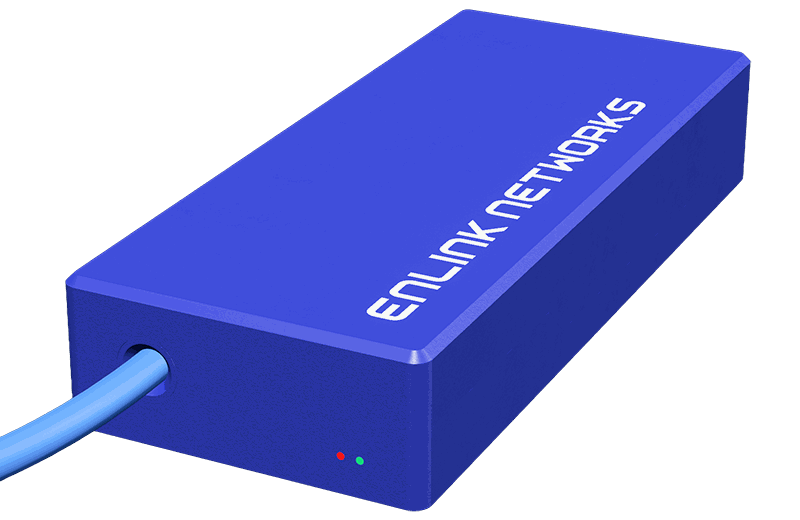
Meet the Little Blue Box™.
Designed in-house, and available exclusively for our Managed by Enlink customers, it simply plugs into your router and gets to work, monitoring your network in real time. So if something goes wrong, we can quickly pinpoint the fault — whether it's at our end or yours.
Enquire for more details