How to open the powerful text-only command window on your computer
When diagnosing a networking issue for a client, we'll often ask them to run a "terminal" command. In fact, chances are, you're here because we sent you to this page. But if you've never used the terminal before, it can feel intimidating, and you may not know how to even open it, so here's a short guide.
The terminal is a window on your computer where you can type commands instead of pointing and clicking with your mouse. It's sometimes better known as the command line, command prompt, "cmd", console, or shell, but whatever you call it, it's important to understand what it can do, before you start.
The terminal is very powerful, so it's worth using a little caution. Don't enter commands you don't understand, especially if they come from somewhere you don't know or trust. When we give you a command to help diagnose a networking issue, take your time typing it in and double-check it's exactly right before pressing return. If a command ever asks for your password, that's a good reason to pause and check with us first, but most networking commands won't need one.
To understand what a command does, the simplest way to is to Google, or even ask an AI if it's safe to run.
Windows actually has two different terminal windows, known as Command Prompt and PowerShell. It doesn't really matter which one you use, the network-testing tools we recommend are usually available in both.
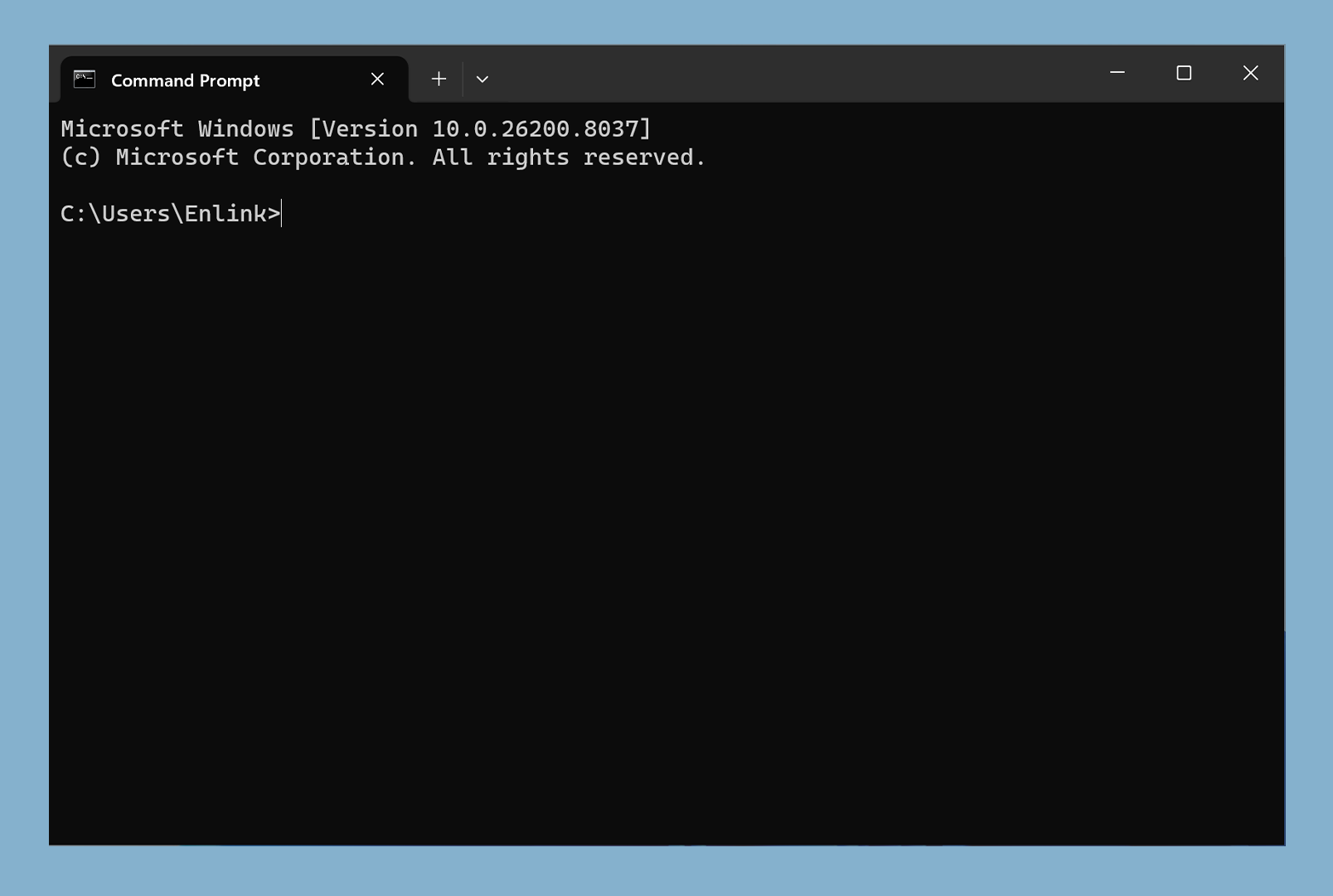
To open it, press the Windows key + R together, then type "cmd" or "powershell" and press return.
It should look like this:
Mac is based on BSD, which is a Unix-based operating system. Sometimes the name of the command is different from Windows (for example it's 'tracert' on Windows, and 'traceroute' on Mac and Linux), but they largely work the same way, with a few minor differences.
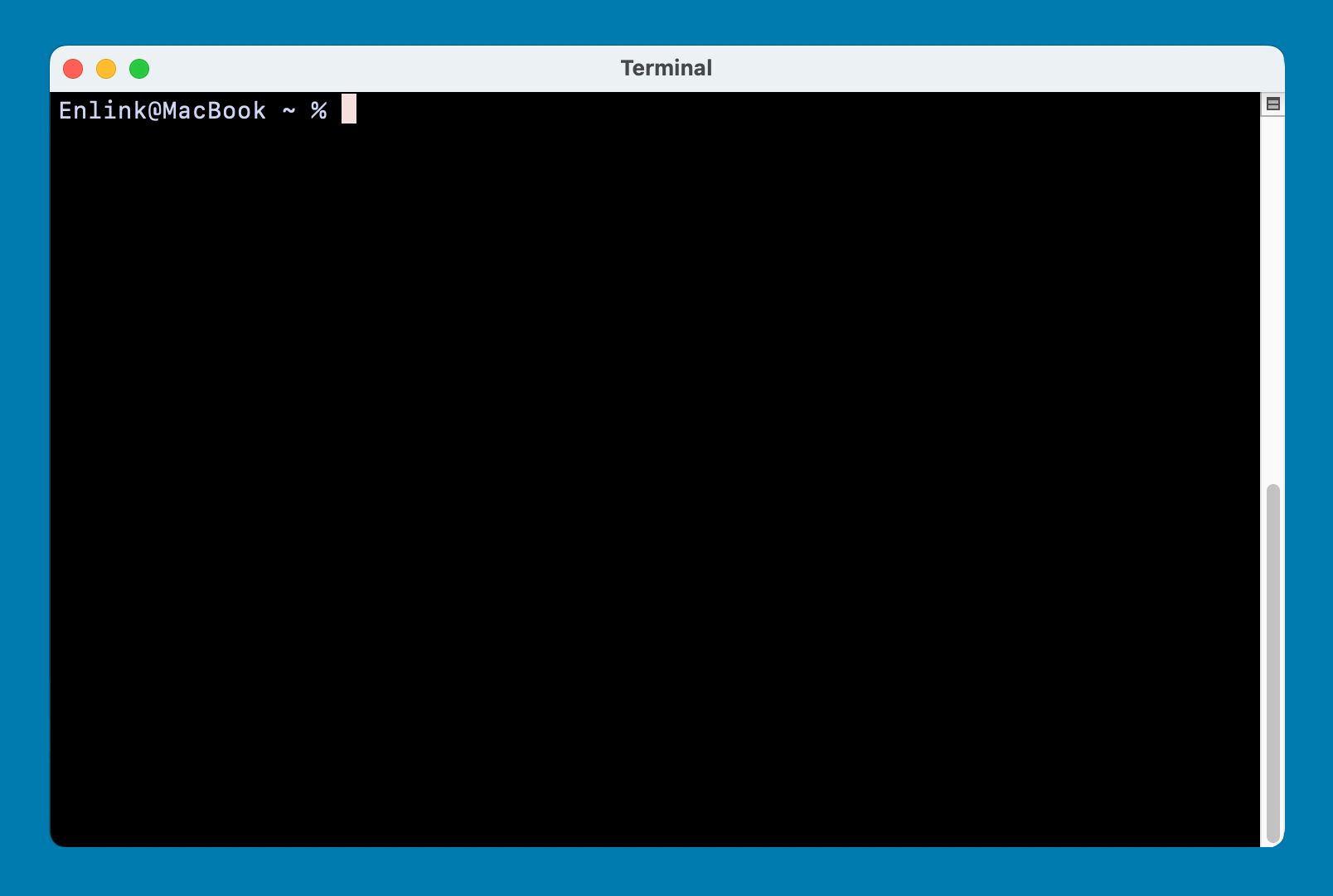
To open a Terminal on Mac OS, press CMD + Space, then type "terminal" and press return. It should look like this.
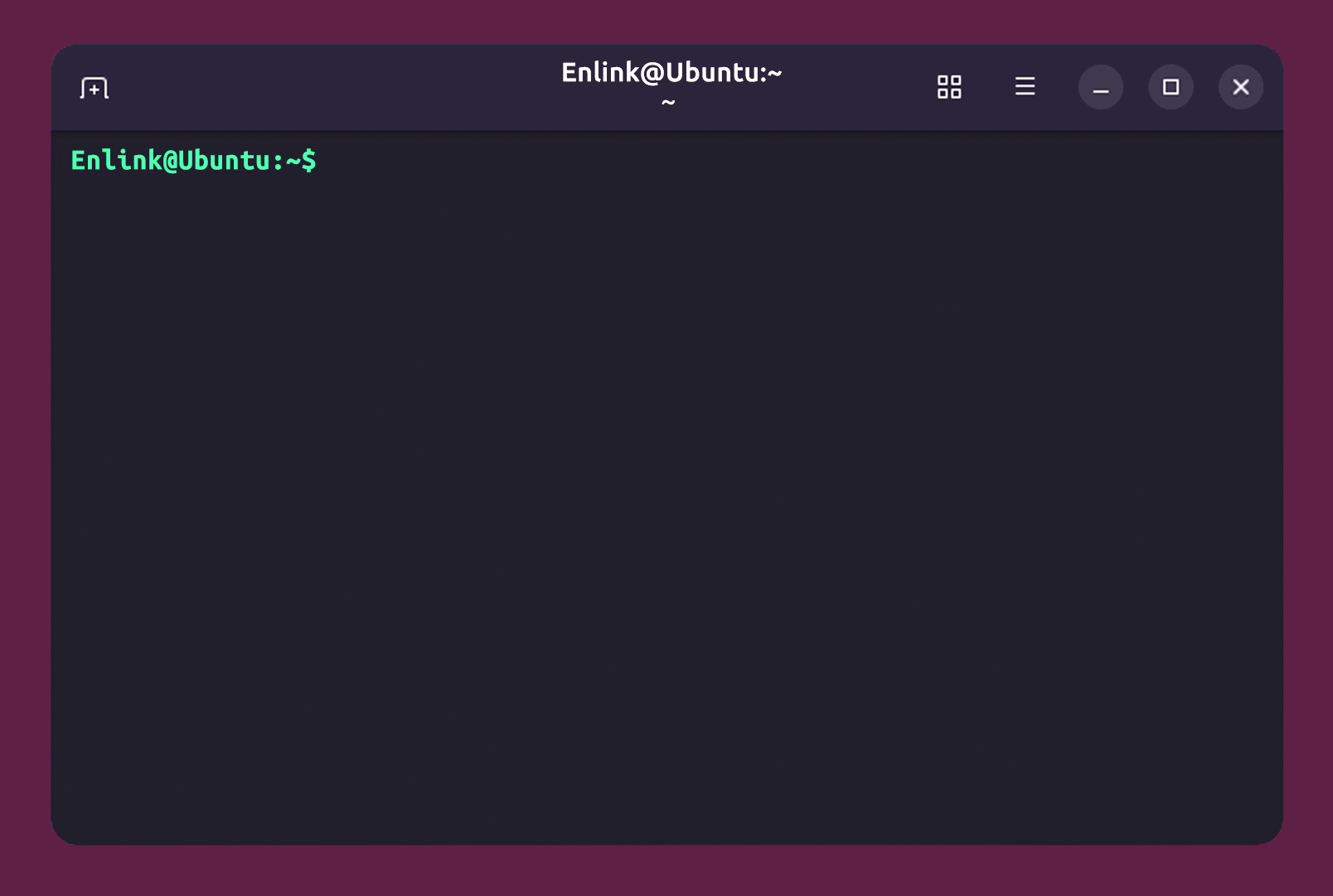
If you're running Linux, there's a pretty good chance you already know how to open a terminal, but just in case, it's usually Ctrl + Alt + T on your keyboard, or search for "Terminal" in your applications menu.
It should look like this.