


If you're having connection issues, we'll often ask you to 'Run an MTR test'. While it's built into Linux, it needs to be downloaded for Windows or Mac. Here's how:
On Windows, MTR is not a command line tool, but runs as a Windows GUI application. It looks a bit old-fashioned, but it runs perfectly on every version of Windows from XP upwards, and doesn't actually need to be installed.
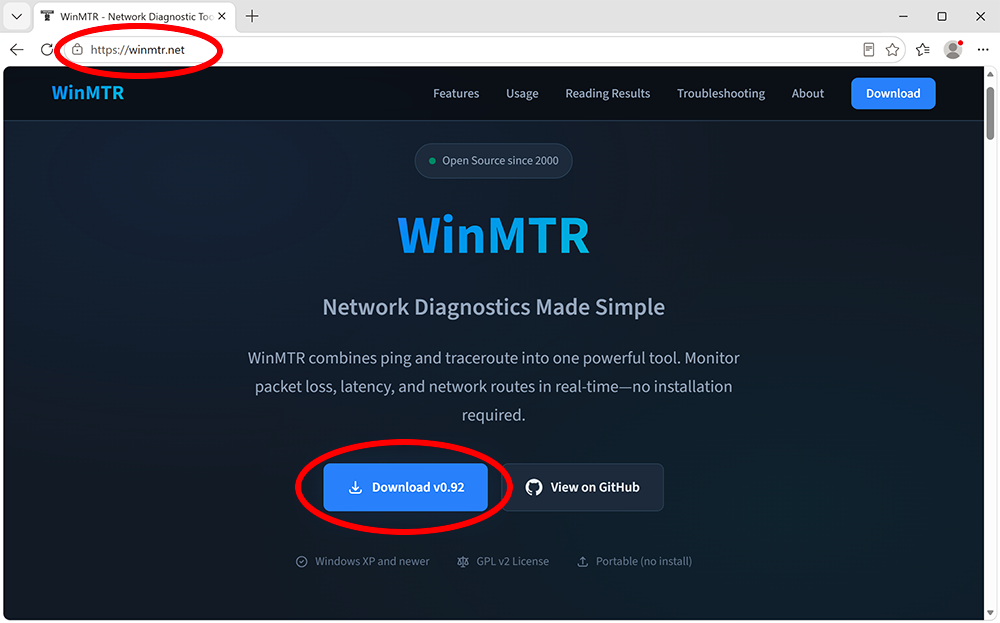
To download it, visit the official site at winmtr.net and click download.
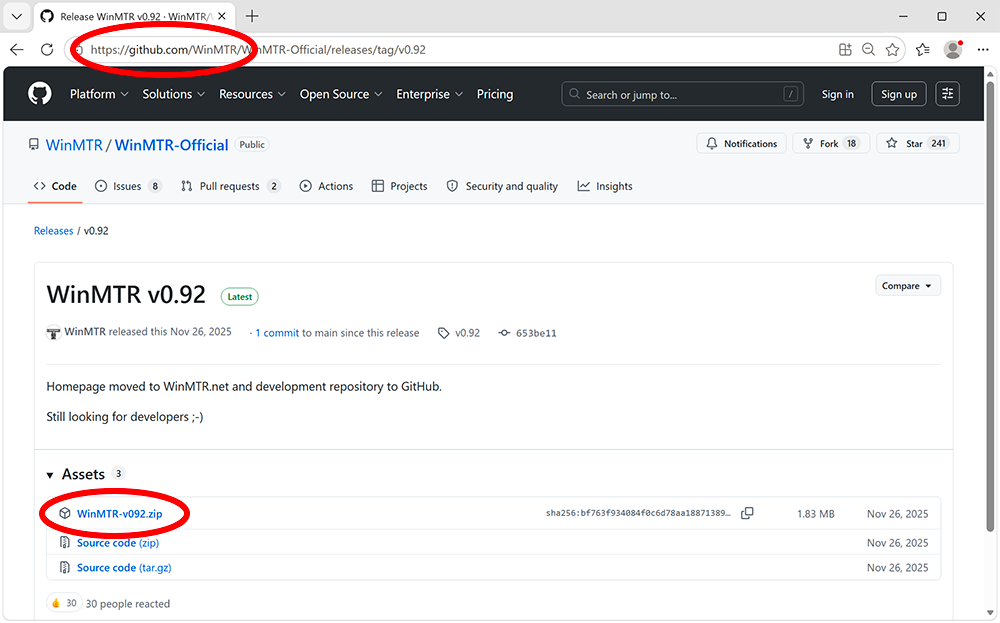
This takes you to the github page, where you can download the latest version (WinMTR-v092.zip as of 19/06/26)
Open the zip file from your downloads folder and navigate to the WinMTR_x64 folder
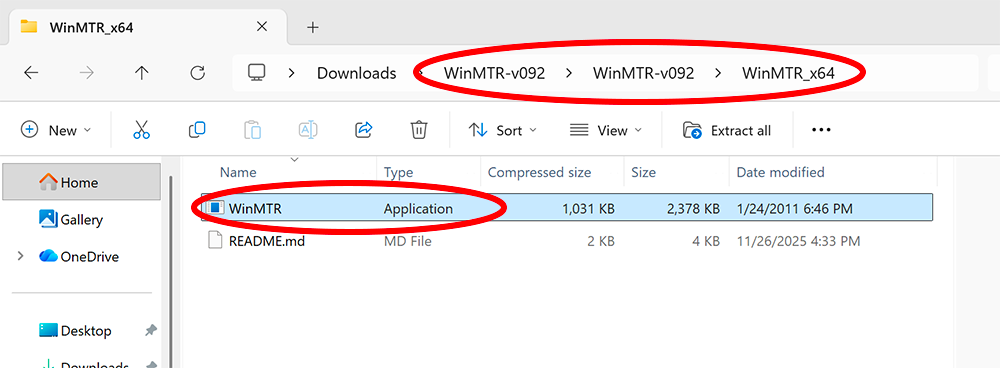
then drag the WinMTR file to somewhere easy to access (such as your Desktop) and then double-click to open WinMTR, no installation necessary.
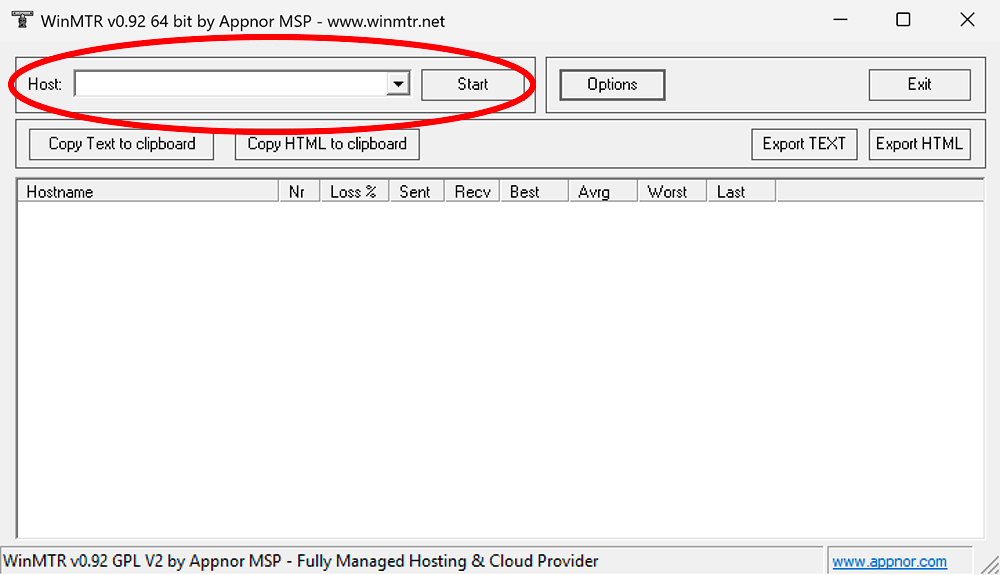
Now you can enter a hostname or IP address (such as example.com) into the Host box, and press Start to begin a test.
On MacOS, MTR is a command-line tool which runs in the Terminal. It's not installed by default, so you'll need to first install Homebrew by visiting brew.sh.
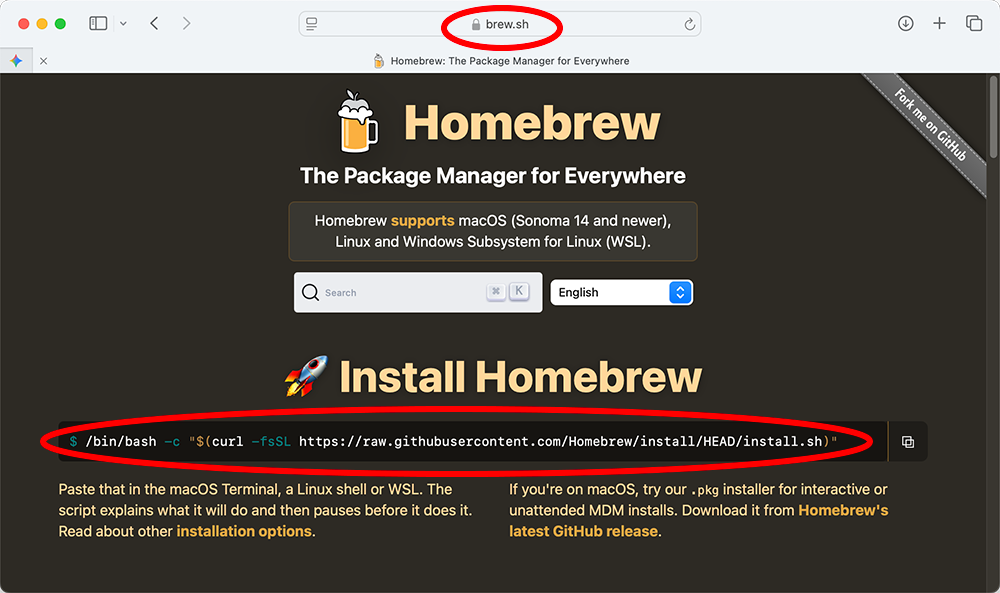
Copy the long link on the homepage, highlighted in red above, and paste it into a terminal window.
You'll need to enter your password, then press RETURN/ENTER.
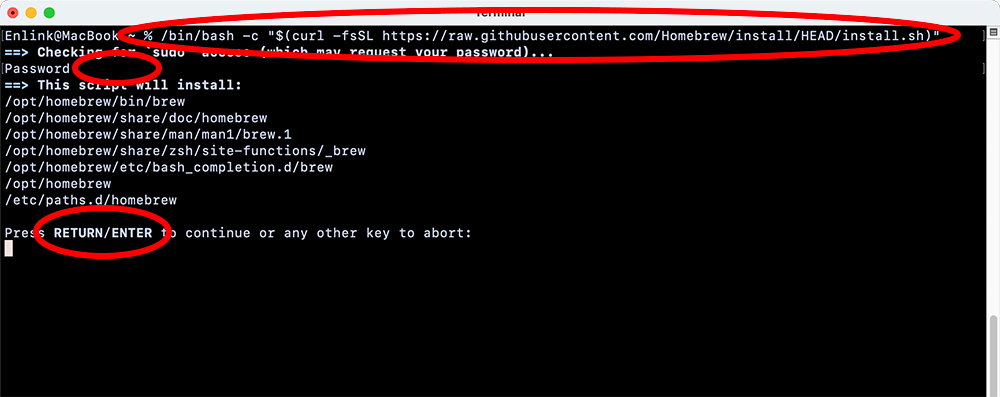
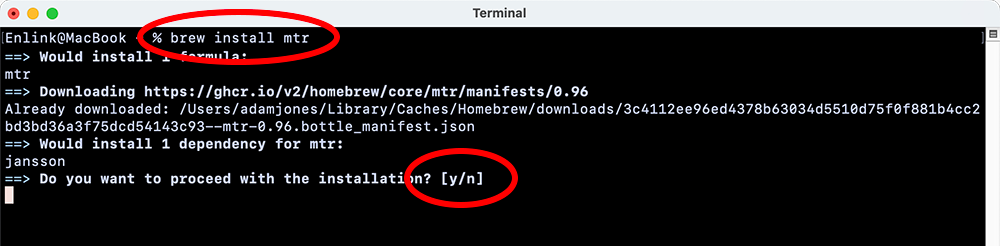
Once Homebrew is installed, you can install MTR by typing:
brew install mtr
then pressing y to agree.
In the terminal window, simply type sudo mtr followed by a hostname or IP address. For example:
sudo mtr example.com
You'll need to put your password in each time you run it, because MTR needs raw network access to craft and send ICMP packets. It's safe to do so.
On Linux, it's pre-installed on most systems. But if for any reason it's not, enter one of the following commands into a terminal
On Debian/Ubuntu based systems:
sudo apt install mtr
On RHEL/CentOS/Fedora:
sudo yum install mtr
or on newer Fedora:
sudo dnf install mtr
On Arch:
sudo pacman -S mtr
In the terminal window, simply type mtr followed by a hostname or IP address. For example:
mtr example.com
